

Description
Is your WordPress site quietly failing to send email? Order confirmations, password resets and contact form messages that never arrive usually go unnoticed until a customer complains. ByteCoreStack – SMTP & Health Monitor sends your WordPress email through a real, authenticated SMTP server, keeps a searchable log of every email with its full message, and tells your team on Slack, Microsoft Teams, Google Chat or Discord the moment sending breaks.
Why WordPress emails fail
Out of the box, WordPress sends email with PHP mail(). It has no authentication, so Gmail, Outlook and Yahoo often send those messages to spam or reject them, and many hosts disable it entirely. That’s why “WordPress not sending email” is one of the most common WordPress problems. The fix is SMTP: sending through a real mail server that signs in, such as Gmail, Microsoft 365, your host’s mail server or a transactional email service.
Set up in about a minute
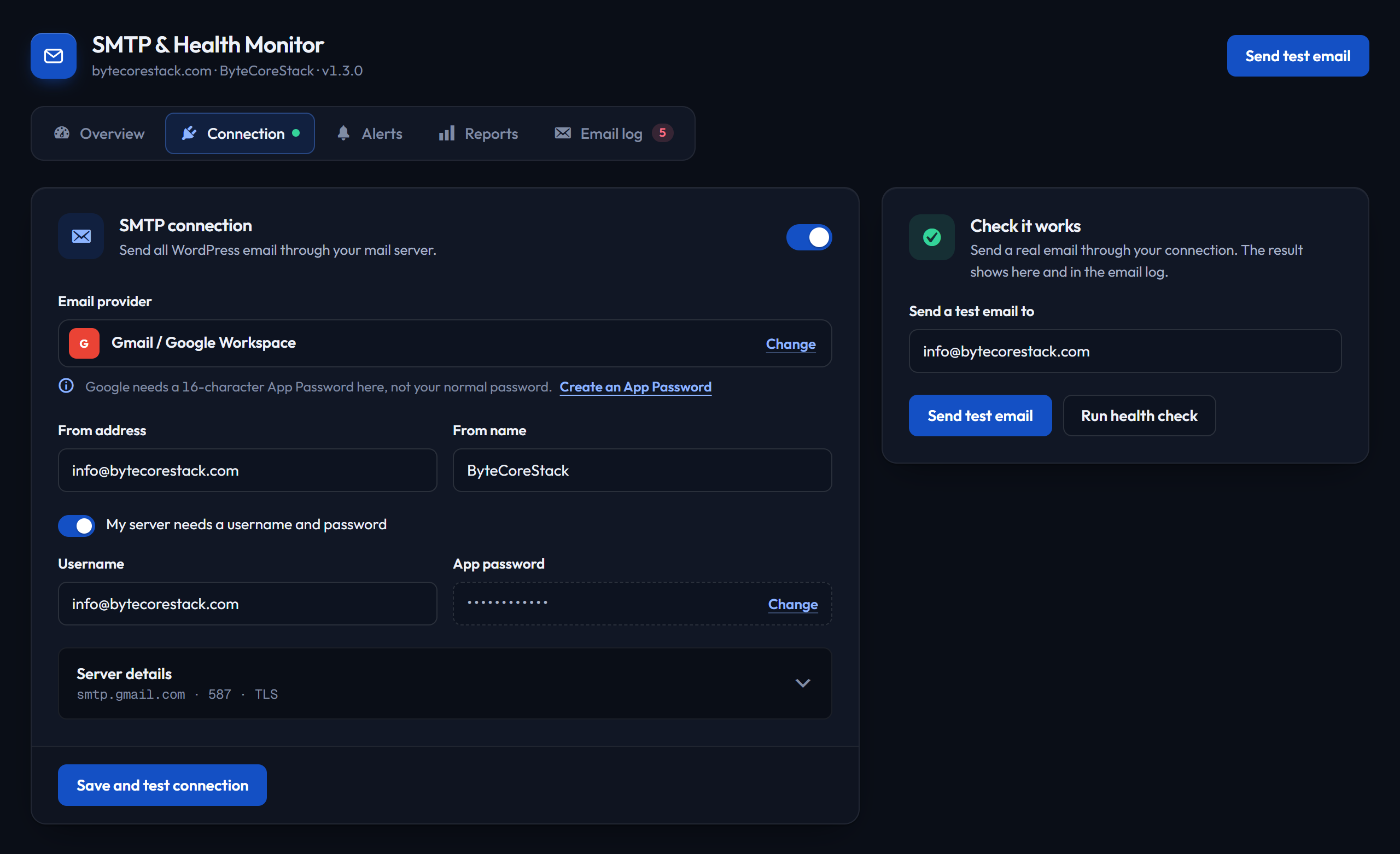
- Pick your provider. The server, port and encryption fill in for you, with sign-in tips for that provider.
- Enter your username and password (or app password / API key) and click Save and test connection. The plugin signs in to your server right away and tells you whether it worked.
- Send a test email to confirm a real message arrives.
Features
Reliable sending
- Send all WordPress email through any SMTP server: SSL, TLS or no encryption, with automatic TLS upgrade
- Ready-made settings for Gmail / Google Workspace, Microsoft 365 / Outlook, SendGrid, Amazon SES, Mailgun, Brevo, Zoho Mail and Yahoo Mail, plus any other SMTP server
- Test email with a plain explanation when it fails: sign-in failed, rejected by the server, or couldn’t connect, along with the server’s own reply
- SMTP password encrypted at rest
Email log
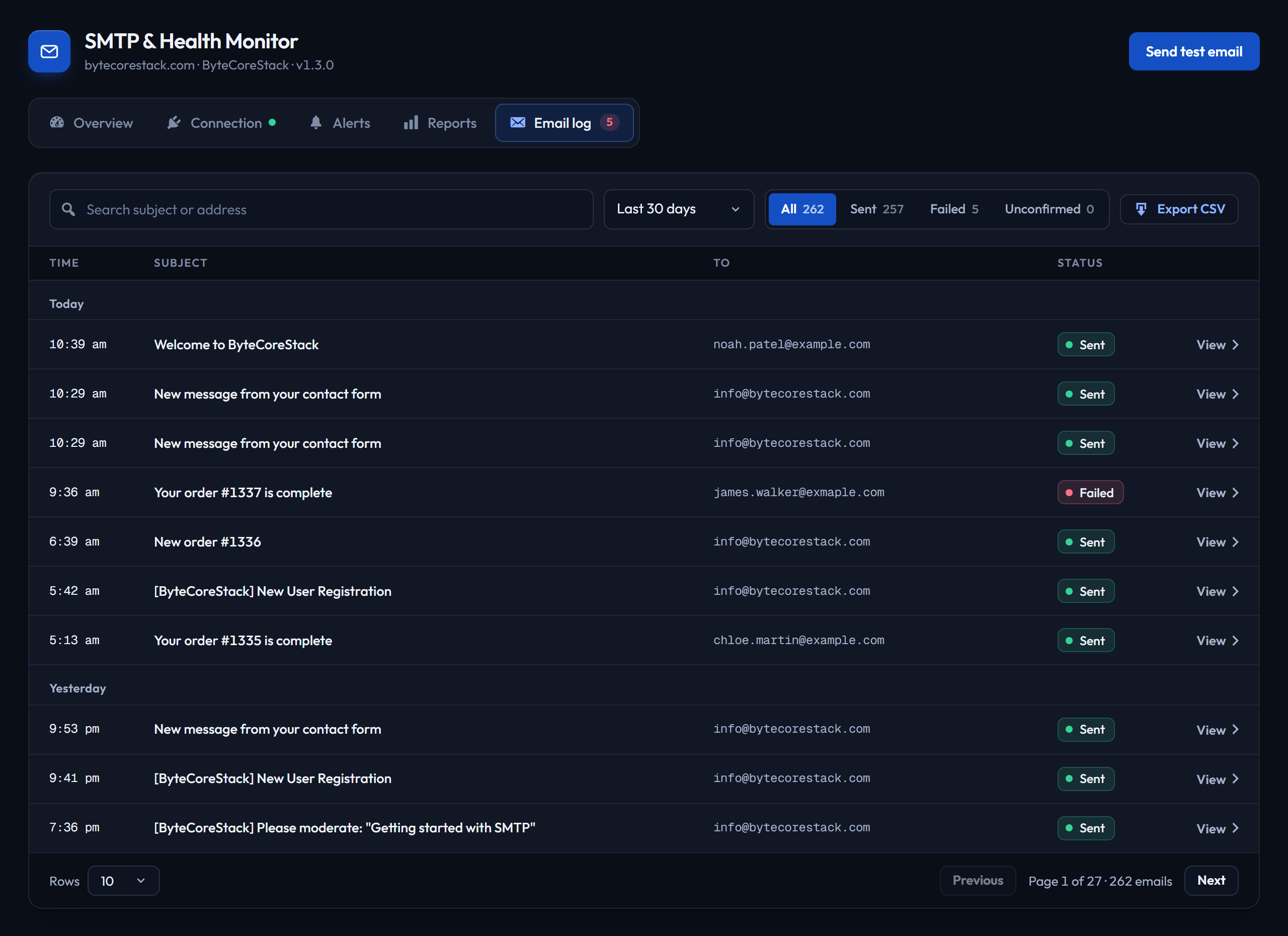
- Every email WordPress sends, grouped by day, with its delivery status and the server’s reason for any failure
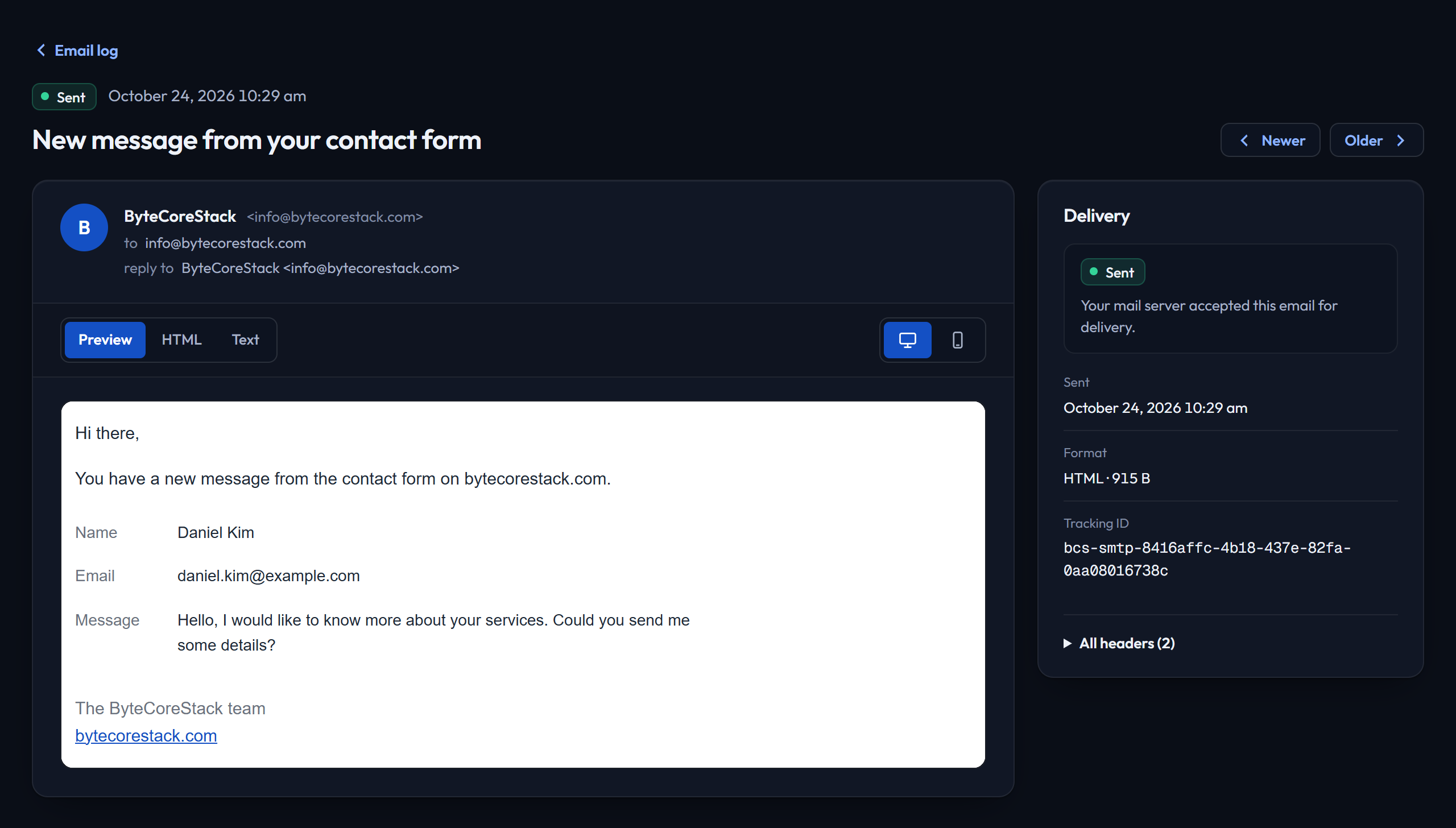
- Open any email on its own page: a safe preview of the message, its HTML source, a text version, every header and attachment names, with a phone-width preview to check mobile layout
- Search, filter by status (with counts) and date range, and export to CSV
- Keeps the last 90 days and removes older entries automatically
Health checks and failure alerts
- Automatic health check every 15 minutes once SMTP is set up: a real sign-in and sender check, with no email sent
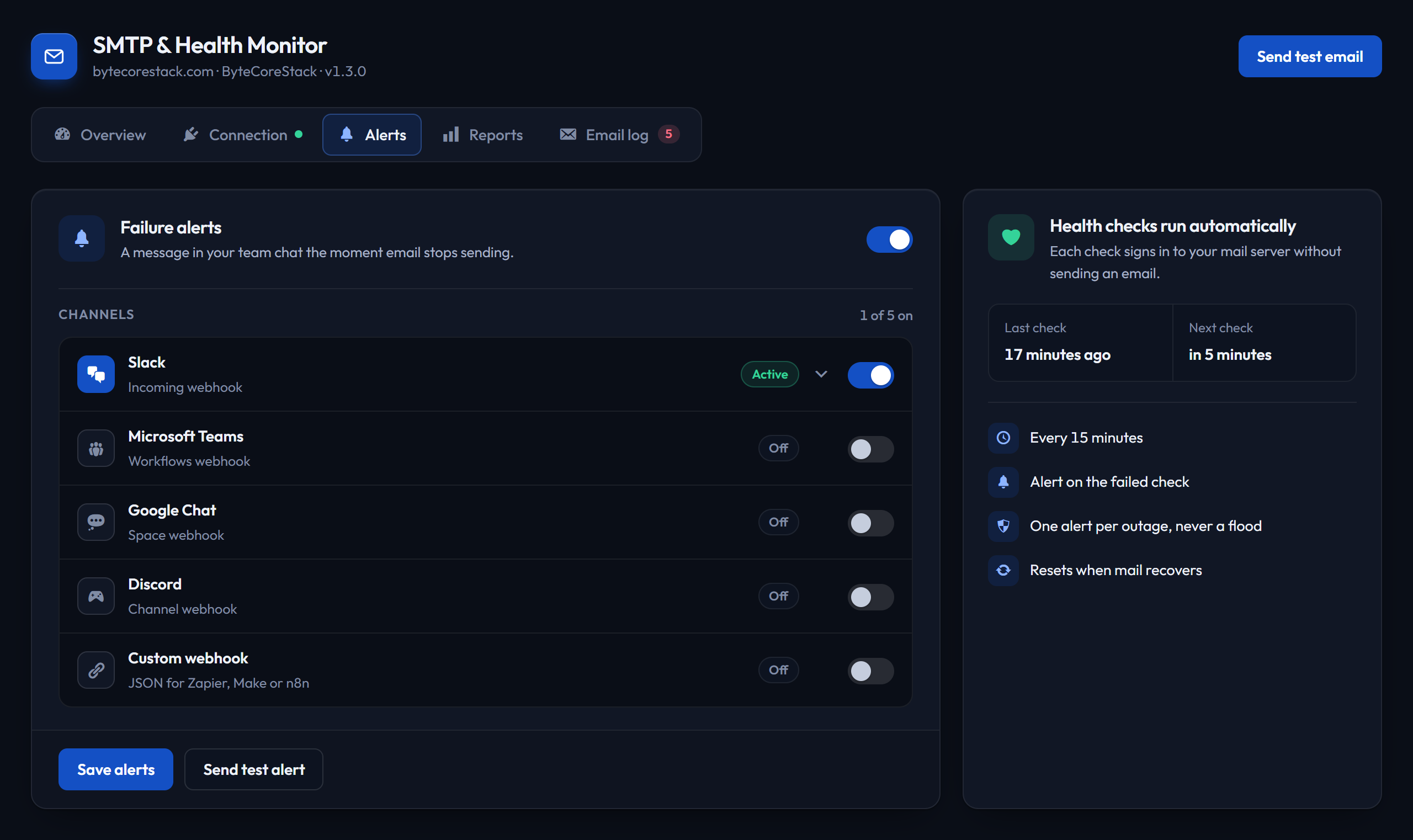
- Alerts to Slack, Microsoft Teams, Google Chat, Discord and a custom webhook (for Zapier, Make or n8n), as many at once as you like
- An alert on the first failed check, and one alert per outage, so a long outage never floods your channel
- Checks whether Microsoft 365 reports an outage before alerting, when you send through Microsoft 365
Reports
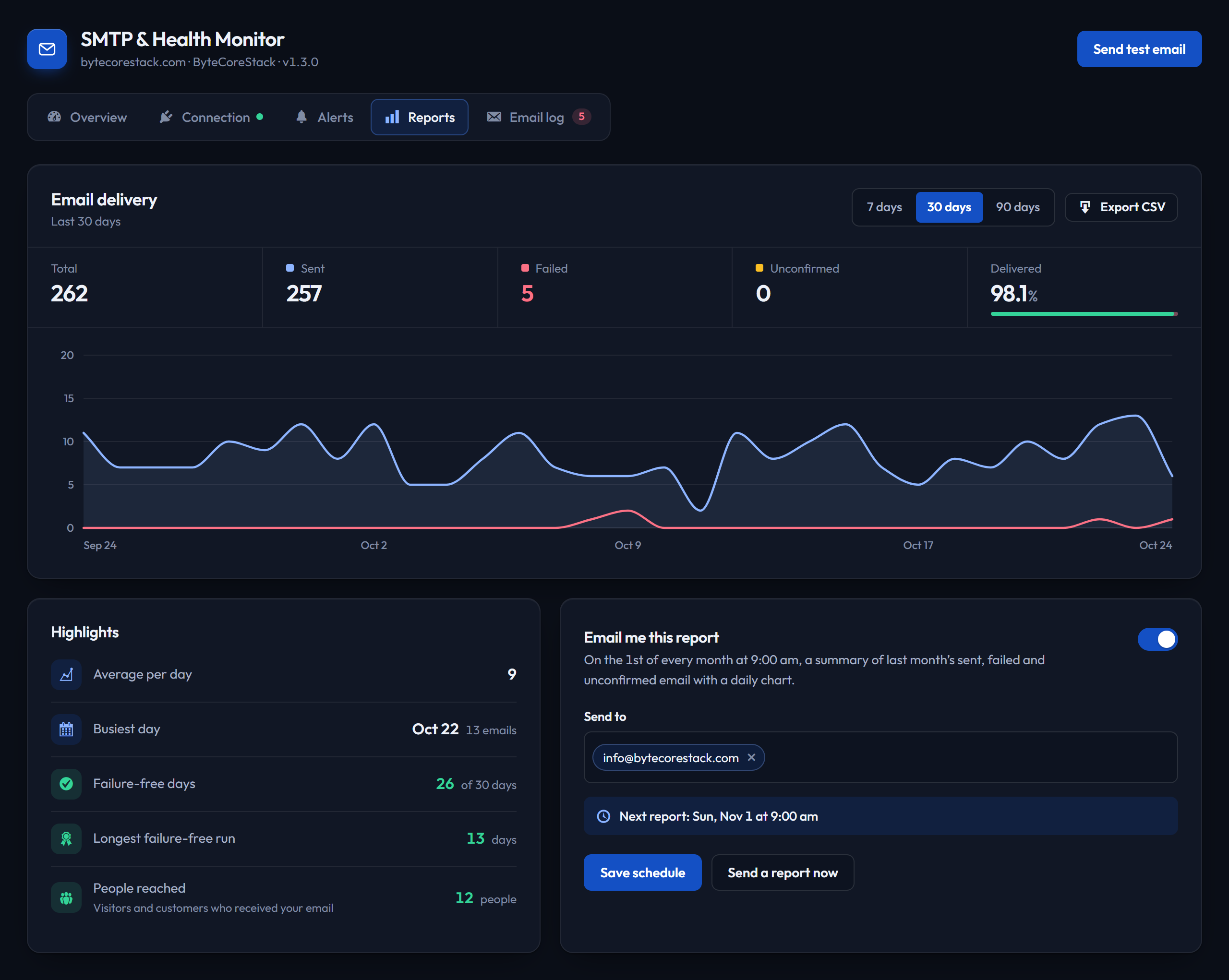
- Delivery chart and totals for the last 7, 30 or 90 days, with highlights such as your busiest day, failure-free days and how many people your email reached
- Monthly summary email on the 1st of every month at 9:00, covering the previous month, sent to whoever you choose
Built for WordPress
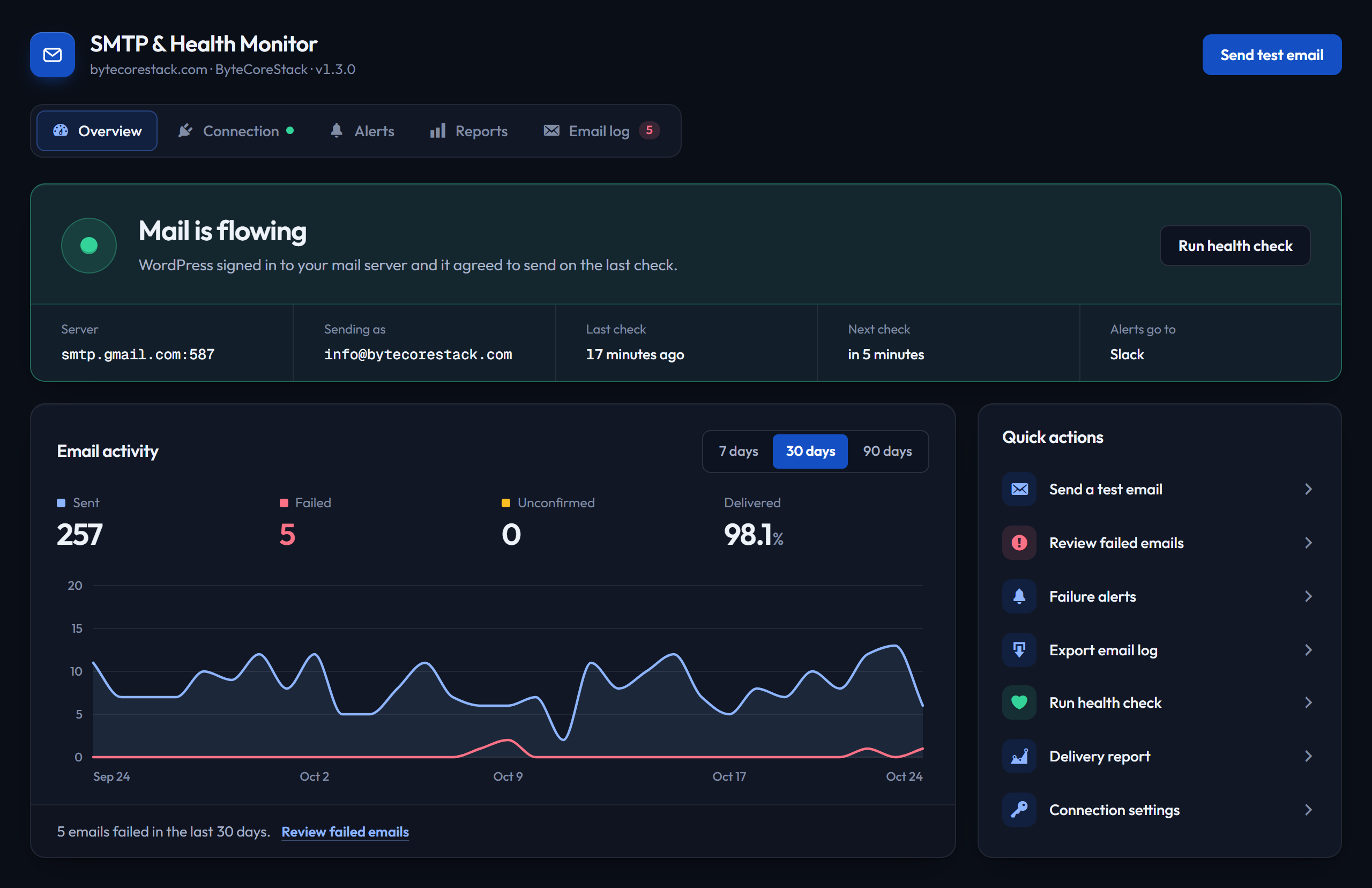
- Overview screen showing whether mail is flowing, when the last and next checks run, and what’s left to set up
- Dashboard widget with SMTP health and 30-day totals
- WP-CLI commands:
wp bcs-smtp testandwp bcs-smtp log list - Dark, responsive admin that works on phones and tablets, with keyboard-accessible controls and bundled fonts (no external requests)
Works with any plugin that sends email
WooCommerce, Contact Form 7, WPForms, Gravity Forms, Elementor Forms, Easy Digital Downloads, membership and booking plugins, and WordPress’s own password reset and new user emails all send through wp_mail(), so they use your SMTP connection automatically. There’s nothing to change in those plugins.
Supported SMTP providers
Any provider that offers standard SMTP sign-in works:
- Gmail / Google Workspace (app password, or the Workspace SMTP relay for higher volume)
- Microsoft 365 / Outlook
- SendGrid
- Amazon SES
- Mailgun
- Brevo
- Zoho Mail
- Yahoo Mail, SMTP.com, or your web host’s mail server
Privacy
Everything the plugin stores stays in your own WordPress database: your SMTP settings, and the email log (each email’s date, subject, sender, recipients, delivery status, message body, headers and attachment file names). Attached files themselves are never copied. Log entries are deleted automatically after 90 days, only administrators can see them, and uninstalling the plugin removes all of its data. Nothing is sent to ByteCore Stack. See External services below for the services the plugin contacts.
Documentation and support
Plugin home page: bytecorestack.com/plugins/smtp-manager. For questions or bug reports, use the support forum on this plugin’s WordPress.org page.
Credits
The admin screens use two fonts bundled with the plugin, both under the SIL Open Font License 1.1 (license files included in assets/fonts): Outfit and Geist Mono.
External services
The plugin contacts the services below. None of them receive data from ByteCore Stack, and nothing is sent to ByteCore Stack.
1. Your SMTP server (set up by you)
All email WordPress sends goes through the SMTP server you enter on the Connection tab, using the credentials you provide. Health checks, run every 15 minutes once SMTP is set up, sign in to the same server without sending an email.
2. Slack (optional)
If you turn on Slack alerts, the plugin sends a failure notification (site name and address, time, the problem and the mail server’s error, mail server and sending address) to the Slack incoming webhook URL you provide, only when a health check fails or you click “Send test alert”.
* Service: Slack Technologies, LLC
* Terms of service: https://slack.com/terms-of-service
* Privacy policy: https://slack.com/privacy-policy
3. Microsoft Teams (optional)
If you turn on Teams alerts, the same notification is sent to the Teams webhook URL you provide, only when a health check fails or you click “Send test alert”.
* Service: Microsoft Corporation
* Terms of service: https://www.microsoft.com/en-us/servicesagreement
* Privacy policy: https://privacy.microsoft.com/en-us/privacystatement
4. Google Chat (optional)
If you turn on Google Chat alerts, the same notification is sent to the Google Chat webhook URL you provide, only when a health check fails or you click “Send test alert”.
* Service: Google LLC
* Terms of service: https://policies.google.com/terms
* Privacy policy: https://policies.google.com/privacy
5. Discord (optional)
If you turn on Discord alerts, the same notification is sent to the Discord webhook URL you provide, only when a health check fails or you click “Send test alert”.
* Service: Discord Inc.
* Terms of service: https://discord.com/terms
* Privacy policy: https://discord.com/privacy
6. Custom webhook (optional)
If you turn on the custom webhook, the notification is sent as JSON to the URL you provide (the same details, plus your server’s IP address and the number of failed checks), only when a health check fails or you click “Send test alert”. The URL is entirely your choice, such as Zapier, Make, n8n or your own server.
7. ipify (automatic, only on some servers)
The server’s outgoing IP address is included in diagnostics and alerts. If your server doesn’t report its own address (common on local, Docker or some proxied setups), the plugin asks the ipify public API for it, at most once a day. The request carries no site or email data; the reply is just an IP address.
* Service: ipify
* Website and terms: https://www.ipify.org/
8. Microsoft 365 service status (automatic, only for Microsoft 365)
When a health check fails and your SMTP server is Microsoft 365 / Outlook, the plugin reads Microsoft’s public service status page to tell you whether Microsoft is reporting an outage. No site or email data is sent.
* Service: Microsoft Corporation
* Terms of service: https://www.microsoft.com/en-us/servicesagreement
* Privacy policy: https://privacy.microsoft.com/en-us/privacystatement
Screenshots
Installation
- In WordPress, go to Plugins Add New, search for “ByteCoreStack SMTP” and click Install Now, or upload the
bcs-smtp-managerfolder to/wp-content/plugins/. - Activate the plugin.
- Go to Settings SMTP Manager and open the Connection tab. Pick your provider (Gmail, Microsoft 365, SendGrid, Amazon SES, Mailgun, Brevo, Zoho, Yahoo or another SMTP server).
- Enter your username and password (or app password / API key), then click Save and test connection.
- Click Send test email to confirm a real message arrives.
- Optional: open the Alerts tab and choose where failure alerts go, and turn on the monthly report on the Reports tab. Health checks start automatically.
FAQ
-
Why is my WordPress site not sending emails?
-
The usual causes: your host has disabled PHP
mail(), your SMTP password is wrong or has expired (Gmail and Microsoft app passwords can be revoked), the port and encryption don’t match, or your host blocks outgoing SMTP ports. Send a test email from this plugin. It tells you which of these it is and shows the mail server’s own reply. -
What is SMTP and why do I need it?
-
SMTP is the standard, authenticated way to send email. WordPress’s default PHP
mail()doesn’t sign in to anything, so its messages are often marked as spam or rejected. Sending through a real SMTP server (your host, Gmail, Microsoft 365 or a transactional email service) fixes that. -
Does it work with Gmail?
-
Yes. Use a Gmail app password: Google no longer accepts your normal account password for SMTP. Turn on 2-Step Verification, then create an app password under Security App passwords. Google Workspace accounts can also use the SMTP relay service for higher sending limits.
-
Does it work with Microsoft 365 / Outlook?
-
Yes. Pick Microsoft 365 / Outlook and the server (
smtp.office365.com, port 587, TLS) fills in. SMTP sign-in (SMTP AUTH) must be allowed for the mailbox in your Microsoft 365 admin center; see Microsoft’s authenticated SMTP guide. -
Does it work with SendGrid, Mailgun, Amazon SES, Brevo or Zoho?
-
Yes. Any service that gives you SMTP credentials works. For Amazon SES, copy the SMTP endpoint for your region from the SES console, and use your SES SMTP credentials rather than your AWS access keys.
-
Does it work with WooCommerce, Contact Form 7, WPForms or Gravity Forms?
-
Yes. Any plugin that sends email through WordPress’s
wp_mail()function uses your SMTP connection automatically, with nothing to configure on their side. -
Can I see the full content of an email that was sent?
-
Yes. Click View on any row of the Email log to open the email: a safe preview of the message, its HTML source, a plain-text version, every header and the names of any attachments. Failed emails also show the mail server’s complete reply.
-
What does the email log store, and for how long?
-
Each entry keeps the date, subject, sender, recipients, delivery status, any error, the message body, headers and attachment file names (never the files themselves). Entries are deleted automatically after 90 days. Saved emails can include sensitive details such as password reset links or form submissions, so only administrators can view the log.
-
How do failure alerts work?
-
Health checks run automatically every 15 minutes once SMTP is set up. Each check signs in to your mail server and checks your sender address, without sending an email. If a check fails, one alert goes to every channel you picked on the Alerts tab. You won’t get another until mail has recovered and broken again.
-
How do I set up Slack, Microsoft Teams, Google Chat or Discord alerts?
-
On the Alerts tab, turn on failure alerts, tick the channel and paste its incoming webhook URL. Each channel has a setup guide link next to its field:
* Slack incoming webhooks
* Microsoft Teams incoming webhooks
* Google Chat webhooks
* Discord webhooks -
Can I send alerts to Zapier, Make or n8n?
-
Yes. Use the custom webhook channel. It sends a JSON payload (
event,site_name,error_msg,consecutive_failuresand more) that automation tools can read: Zapier webhooks, Make webhooks, n8n Webhook node. -
When is the monthly report sent?
-
On the 1st of every month at 9:00 (your site’s time zone), covering the whole previous month. “Send a report now” sends the current month so far.
-
No. It’s built for transactional email such as orders, password resets, form notifications and account emails. Use a dedicated email marketing service for newsletters.
-
Can I switch from another SMTP plugin?
-
Yes. Set up your connection here and send a test email, then deactivate the other SMTP plugin. Switching doesn’t affect your emails or other plugins.
-
Is my SMTP password stored securely?
-
Yes. It’s encrypted before it’s saved, using a random key the plugin creates for your site (or a
BCS_SMTP_CRYPTO_KEYconstant you can define inwp-config.php), and it’s never sent anywhere except your own SMTP server. -
Does it work on multisite?
-
Yes, on each site of a network. Each site is set up separately; there’s no network-wide settings screen yet.
-
Can I use it from the command line?
-
Yes.
wp bcs-smtp test you@example.comsends a test email, andwp bcs-smtp log listlists recent log entries, with--status,--daysand--formatoptions.
Reviews
There are no reviews for this plugin.
Contributors & Developers
“ByteCoreStack – SMTP & Health Monitor” is open source software. The following people have contributed to this plugin.
Contributors
Translate “ByteCoreStack – SMTP & Health Monitor” into your language.
Interested in development?
Browse the code, check out the SVN repository, or subscribe to the development log by RSS.
Changelog
1.3.0
Redesigned admin. A new Overview shows whether mail is flowing, which server and sender address are in use, when the last and next health checks run, where alerts go, a 7, 30 or 90-day activity chart, quick actions and what’s left to set up. Tabs are now Overview, Connection, Alerts, Reports and Email log, and every screen works on phones and tablets.
One-minute setup. Pick your provider (Gmail / Google Workspace, Microsoft 365, SendGrid, Amazon SES, Mailgun, Brevo, Zoho, Yahoo or any other SMTP server) and the server, port and encryption fill in, with sign-in tips for that provider. The password field is labelled for that provider (for example “App password” for Gmail). Testing sits right next to the connection form, and you’re warned before leaving with unsaved changes.
View the full email. Every email is now saved with its body, headers and attachment names for 90 days. Click View on any row of the Email log to open it on its own page: a safe preview, the HTML source, a text version, a phone-width preview, every header and the mail server’s reply. Emails saved by 1.2.1’s “store failed emails” option are kept and can be viewed too.
Email log. Grouped by day (Today, Yesterday, then by date), with status filters that show counts, search, date ranges, 10 to 100 rows per page and CSV export. Rows stay short and easy to scan; the server’s full reason for a failure is on the email’s own page. The log keeps the last 90 days. If you’re updating from a version that kept everything, older entries stay for 30 days after the update, and the Email log offers an export of all entries before they go.
Clearer alerts. Every alert now opens with a plain title (“Email is failing on your site”), and says what’s wrong in plain words. Slack, Teams and Discord get properly formatted cards, and test alerts say clearly that they’re a test.
Alerts to several channels at once. Pick any mix of Slack, Microsoft Teams, Google Chat, Discord and a custom webhook. Each one gets the alert, and “Send test alert” reports how each did. Webhook URLs are checked as you type.
Always-on health checks. Checks run every 15 minutes once SMTP is set up, alert on the first failure and send one alert per outage. The interval, threshold and alert-limit settings are gone. The health check now also checks your sender address, so a server that accepts the connection but rejects your email is reported as failing.
Monthly report. The report email now goes out on the 1st of every month at 9:00 (site time) and covers the whole previous month, instead of 24 hours after saving and drifting from there. Your daily or weekly report is switched to monthly when you update. “Send a report now” sends the current month so far. Recipients are entered as tags, the next send date is shown, and turning “Email me this report” off hides the report options.
Redesigned emails. The test email and the monthly report have a cleaner layout that fits phones and supports dark mode. The report leads with a clear verdict and the delivery rate, then shows sent, failed and unconfirmed totals and a day-by-day chart for every day of the month, with a button to open the full report. The test email confirms which server and sender it went through and when.
Reports. Delivery chart for 7, 30 or 90 days with totals and highlights: average per day, busiest day, failure-free days, longest failure-free run and how many people your email reached (not counting your own team). Charts are drawn by the plugin, so the bundled Chart.js library (about 200 KB) is no longer loaded.
Fixes (including fixes prepared for 1.2.2, which wasn’t released separately):
* Fixed “Could not authenticate” errors when a security plugin rotates the WordPress salts (All-In-One Security, Solid Security, Sucuri) or the site moves: the SMTP password now uses its own encryption key, or a BCS_SMTP_CRYPTO_KEY constant in wp-config.php. Existing passwords are moved over automatically.
* Fixed the health check reporting “healthy” when the password was empty, unreadable or not accepted.
* Fixed a “translation loading was triggered too early” notice on WordPress 6.7 and later.
* Errors now include the mail server’s actual reply, such as Microsoft 365’s 535 5.7.139 codes, and a blocked SMTP port times out after 20 seconds instead of hanging.
* Microsoft Teams alerts are sent as Adaptive Cards and accept Teams Workflows (Power Automate) webhook URLs.
* The “last check” and “next check” times always add up to the 15-minute interval.
* Amazon SES no longer pre-fills a region: paste the SMTP endpoint for your own region.
* CSV export now protects against spreadsheet formula injection: a subject or address starting with =, +, – or @ (which can come from a contact form) is exported as plain text.
* Uninstalling on a multisite network now removes the plugin’s data from every site, not just the main one.
* A password saved by 1.0.0, which was stored as plain text, is encrypted when you update.
Removed. The Settings tab, the opt-in “resend failed emails” feature and wp bcs-smtp resend.
Under the hood. Bundled Outfit and Geist Mono fonts (no external requests), the outgoing IP lookup is cached for a day, the email log loads only the columns it shows, uninstalling also removes the plugin’s temporary data, and the readme now documents every external service.
1.2.1
This is the first version published to WordPress.org since 1.1.0. Everything below was built after 1.1.0 and is being released here for the first time — none of it shipped as a separate public update.
Renamed from “SMTP Manager – Email Logs, Monitoring & Alerts” to “ByteCoreStack – SMTP & Health Monitor” for a clearer, more distinctive plugin name. Display name only — the plugin slug (bcs-smtp-manager) and all your settings are unchanged.
Resend failed emails — a new opt-in “Store failed email content” setting (Config tab, off by default) retains the body of an email only when it fails to send, so a “Resend” button now appears on failed rows in the Email Log. Resending creates a fresh log entry with its own delivery status; stored content auto-purges after a configurable number of days (default 7), independently of your overall log retention setting.
WP-CLI support — wp bcs-smtp test <email>, wp bcs-smtp resend <log_id>, and wp bcs-smtp log list for scripted test sends, resends, and log lookups from the command line or a CI/deploy pipeline.
Directory compliance — rewrote parts of the description and admin UI to remove comparative claims about other SMTP plugins, and documented the plugin’s use of external services (SMTP server, alert webhooks, ipify.org, Microsoft 365 status API) in the External Services section, per WordPress.org directory guidelines.
Self-hosted admin fonts — the admin UI no longer loads DM Sans/DM Mono from the Google Fonts CDN; it uses the system font stack instead. Fixes a Plugin Check “offloaded content” error and removes an external request made on every visit to the settings page.
Readme fix — Tested up to now uses major.minor format (7.0) instead of including a patch version, per the WordPress.org readme spec.
Older versions are listed in changelog.txt, included with the plugin.